
Free browser tools
Useful tools.
No upload queue.
Small, focused utilities that run in your browser. Your text and files stay on your device, and there are no accounts, analytics, advertisements, or artificial intelligence.
Eight local tools are available now
Quick access
What do you need to do?
Open a tool directly. Each one runs in your browser without an account or file upload.
Want examples first? Try the practice files →
Tool 01 · Local image converter
One image.
Another format.
Open JPG, PNG, WebP, AVIF, GIF, BMP, or SVG files your browser can decode, then export a local copy as JPG, PNG, WebP, BMP, TIFF, ICO, static GIF, or PPM. Adjust quality, dimensions, transparency handling, and the JPG background before downloading.
Open the converterLocal by construction
The converter uses your browser's built-in image decoder and canvas encoder. The selected file is not uploaded to EinstineWrites or a third-party conversion service. Closing the tab discards its temporary in-memory preview and result.
Open the tool and use it immediately.
Input and output remain on your device.
No analytics, advertising, or conversion logs.
Format support depends on what your browser can decode.
Tool 02 · Batch image resizer
A whole folder of images.
One useful ZIP.
Resize and compress up to 50 images together. Set a maximum size, choose JPG, PNG, or WebP, review each result, then download one ZIP. Everything runs in your browser.
Open the batch toolTool 03 · Screenshot privacy
Share the moment.
Keep details private.
Paste a screenshot, cover names or other private details, crop, then copy or download a clean PNG. No upload, account, or AI.
Open ShareReadyTool 04 · Photo privacy
Share the image.
Leave the metadata.
Inspect and remove common GPS, EXIF, XMP, IPTC and text metadata from JPG, PNG and WebP files. Download a separate copy without uploading the photo.
Open Photo Metadata CleanerTool 05 · Text cleanup
Paste the mess.
Keep the meaning.
Fix extra spaces and invisible characters in copied text. Optionally join wrapped paragraphs, then review, copy or download the clean result. No upload or AI.
Open PasteMementoLearn the useful details.
Not sure which format to choose, how to clean copied text, or what a cleaned copy changes? Our guides walk through each workflow and its limits.
Browse all guides →Tool 06 · PDF workspace
Make the pages work for you.
Combine documents, change page order, crop, resize, interleave scans, extract or split pages, add numbers and convert between PDF pages and images. Your files stay in the browser tab.
Open PDF tools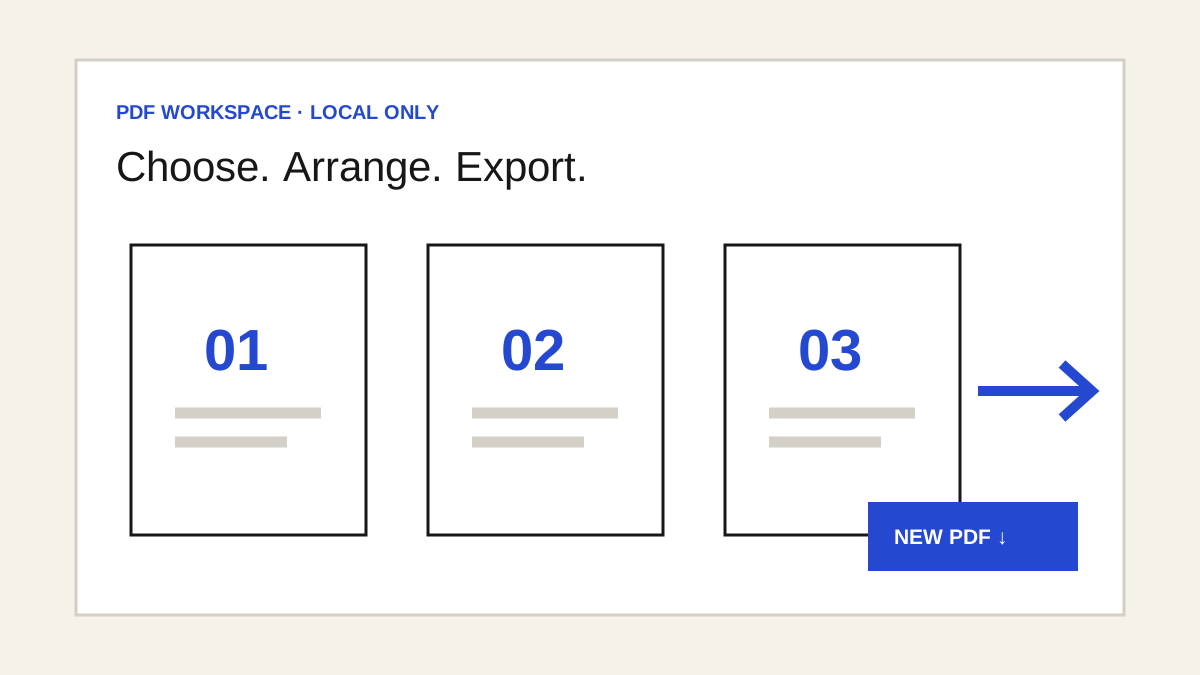
PDF editing
Add the details you need.
Watermarks, headers, notes, highlights, visual signatures and standard form fields, all processed in your browser tab.
Open PDF editor Read the guide →PDF privacy
Check before you share.
Inspect common document details, cover visible areas and export a new image-based PDF without uploading the file.
Open privacy tool Read the guide →