
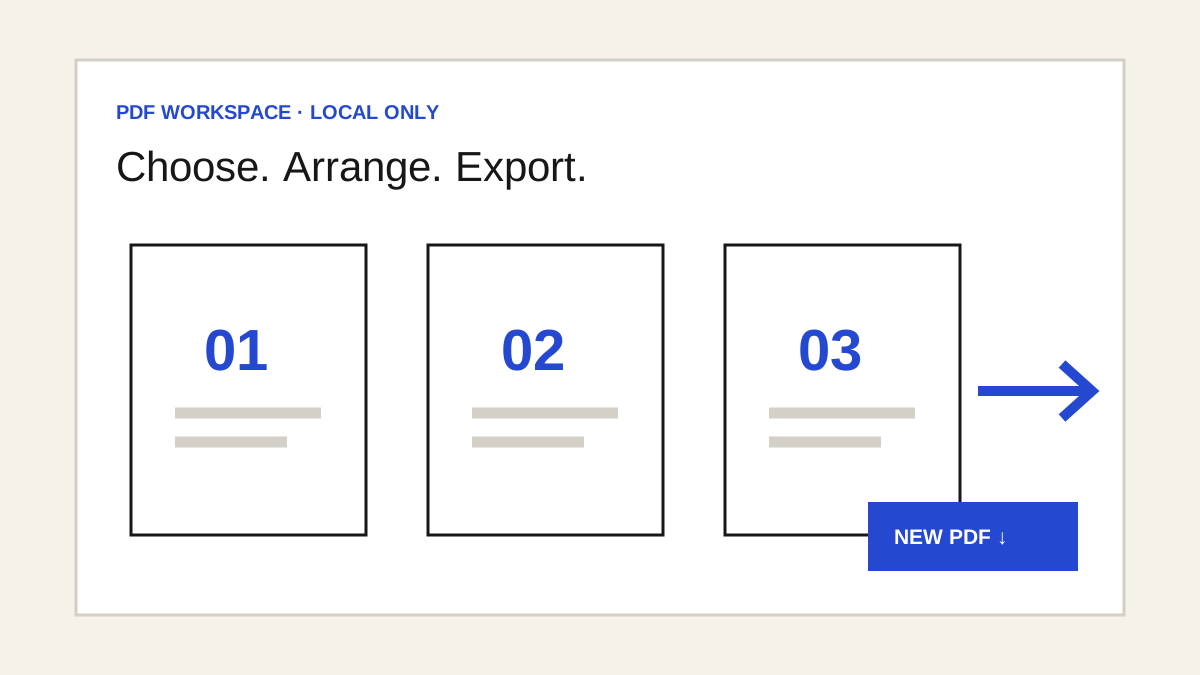
The EinstineWrites PDF workspace keeps your selected files inside the browser tab. Add files, choose a task, review the page previews and download a new copy. The original files stay unchanged.
1. Combine and arrange
Open Merge & organise and add one or more PDFs. Drag page cards into order or use their arrows. Rotate or remove individual pages. Use Duplicate selected to place a copy after each selected page, or Reverse order to reverse the complete page list. Download the combined PDF when it looks right.
2. Crop, resize and add blank pages
Select pages and enter crop margins in millimetres. The preview shows the visible area after cropping. Cropping only hides content; hidden text or images can remain in the PDF. Never use it to cover private details. You can instead fit selected pages into A4 or US Letter. Crop and resize are separate choices for each page. Insert a blank page before the first page or after a chosen position.
3. Interleave front and back scans
If a scanner saved all front sides into one PDF and all back sides into another, add the fronts first and the backs second. Choose whether the back PDF should be reversed. The tool shows the proposed order before download. The two PDFs need equal page counts, or one extra front page.
4. Extract and split
Choose pages by checkbox or enter a range such as 1-3, 6. Download the selected pages as one PDF, or a ZIP with one PDF per selected page. Range positions follow the current page order.
5. Convert pages
PDF to images renders chosen pages as PNG or JPG; text in those images is no longer selectable. Images to PDF places JPG, PNG or WebP files on A4, US Letter or image-sized pages. The workspace can also add page numbers.
6. Check the downloaded copy
Open the result and check page order, crop edges, legibility, orientation and file size. Page editing can affect links, form fields and digital signatures. Password-protected PDFs are not supported. OCR, compression and secure redaction are separate future tools, not functions of cropping.
The practice library includes two general PDFs and a separate front-and-back scan pair. Try merging, duplicating, cropping, resizing and interleaving before using your own files.