
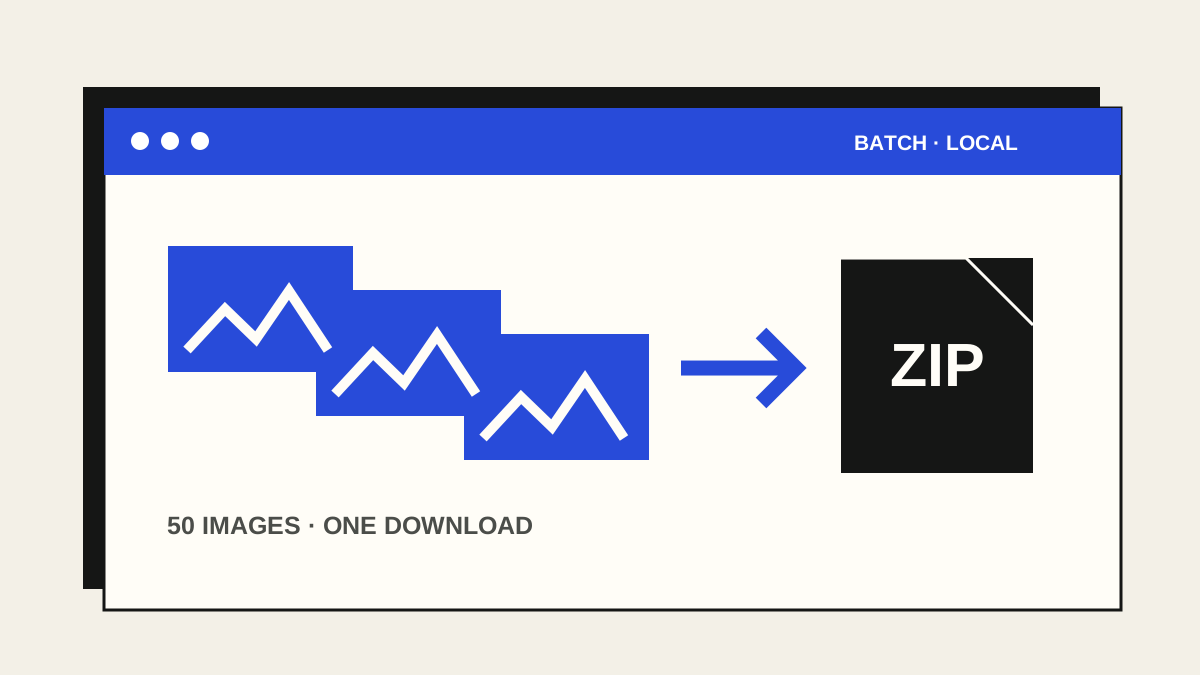
Resizing a folder of images one by one is slow. A batch tool applies the same maximum dimensions and output format to every selected image, while preserving each image's proportions.
1. Prepare the images
Open Batch Image Resizer and choose or drop up to 50 JPG, PNG, WebP, AVIF, GIF or BMP files, up to 25 MB each. Browser decoding support varies, especially for AVIF. Keep your originals in a separate folder before starting.
2. Set the output
Choose WebP for smaller web images, JPG for wide compatibility, or PNG for lossless pixels and transparency. Set a maximum width and height. The tool fits each image inside those limits without stretching or enlarging it. A file-size target is optional and best effort: some images cannot reach it at acceptable dimensions or quality.
For JPG, choose the colour that replaces transparent areas. Adjust starting quality for JPG or WebP; PNG has no lossy quality setting.
3. Review and download
Choose Process images locally. Review the original and output sizes in the result list, then download the ZIP. Open a few files from the ZIP—especially images with text, transparency or fine detail—to confirm they still look right. The selected originals are not modified.
Know what changes
Animated GIFs become still frames. Image metadata is not retained in the output. The tool is for consistent resizing and compression; if you need another output format for a single image, use Image Converter. For a format-preserving photo copy with common embedded metadata removed, use Photo Metadata Cleaner.
The images are decoded and processed locally, and the ZIP is assembled in your browser. Nothing is uploaded to EinstineWrites. Closing the tab discards the temporary results.

Free browser tool
One batch, one ZIP
Resize and review up to 50 images without an account, upload or AI.
Open Batch Image Resizer