JPG, PNG and WebP suit different jobs. A format change can help a file work in another app, but it cannot add detail that was missing from the original. Start with the highest-quality source you are allowed to use.
1. Choose the output for the job
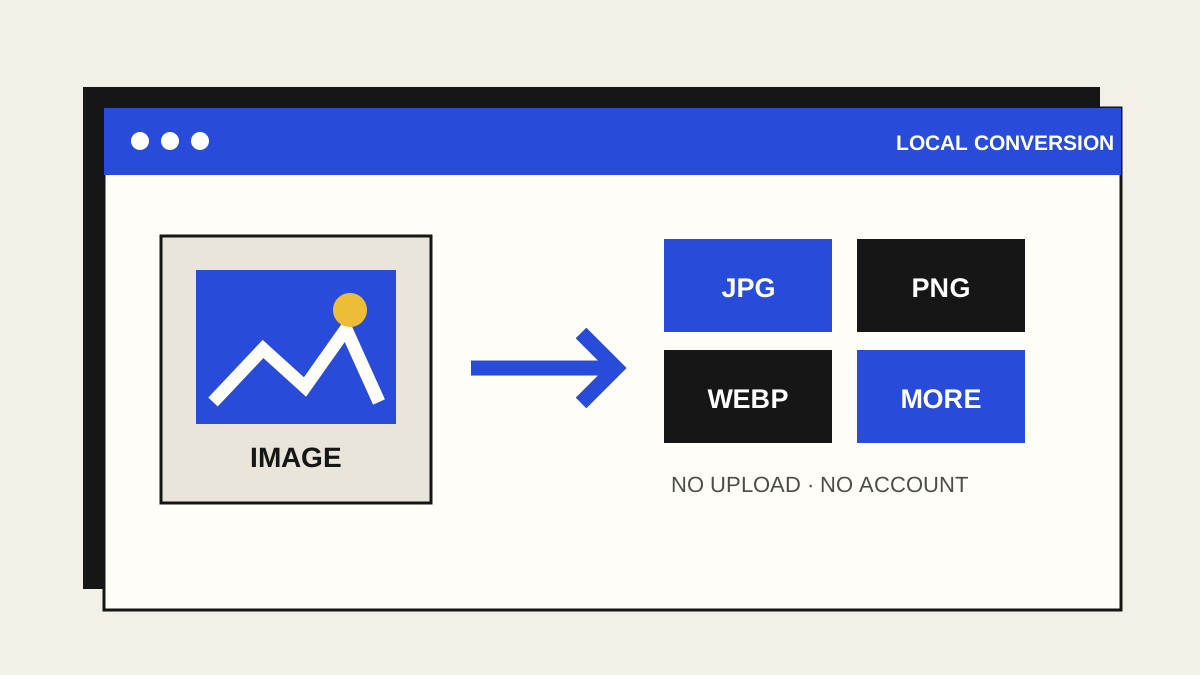
JPG is broadly compatible and often compact for photographs, but it cannot keep transparency. PNG keeps lossless pixels and transparency; photographs may be much larger. WebP can make compact web images and supports transparency, though older software may need another format.
Our Image Converter also offers BMP, TIFF, ICO, static GIF and PPM for specific workflows. Choose ICO for a small Windows icon, or TIFF when an uncompressed editable copy is useful. These formats can produce larger files.
2. Convert in the browser
Open the converter and choose or drop an image. It accepts JPG, PNG, WebP, AVIF, GIF, BMP and SVG when your browser can decode them. Pick an output format, set dimensions or quality if needed, and choose a background colour when exporting transparent areas to JPG. Select Convert locally, then download the result.
3. Open the downloaded file
Check that it opens in the target app and inspect the dimensions, transparency and visual quality. Keep the original until the converted copy works for your purpose. If you need to process many files at once, use the Batch Image Resizer.
What conversion cannot do
Animated GIF input becomes one still frame. SVG output becomes raster pixels. Enlarging dimensions cannot recover detail, and conversion between lossy formats may reduce quality. Browser support for source formats varies; HEIC, RAW and project files are not accepted by this tool.
The tool processes the selected file in your browser tab. It does not upload the image to EinstineWrites. Check the final file before sharing: the visible pixels can still reveal private details.

Free browser tool
Convert one image locally
Choose a format and download a new copy. No account, upload, analytics or AI.
Open Image Converter